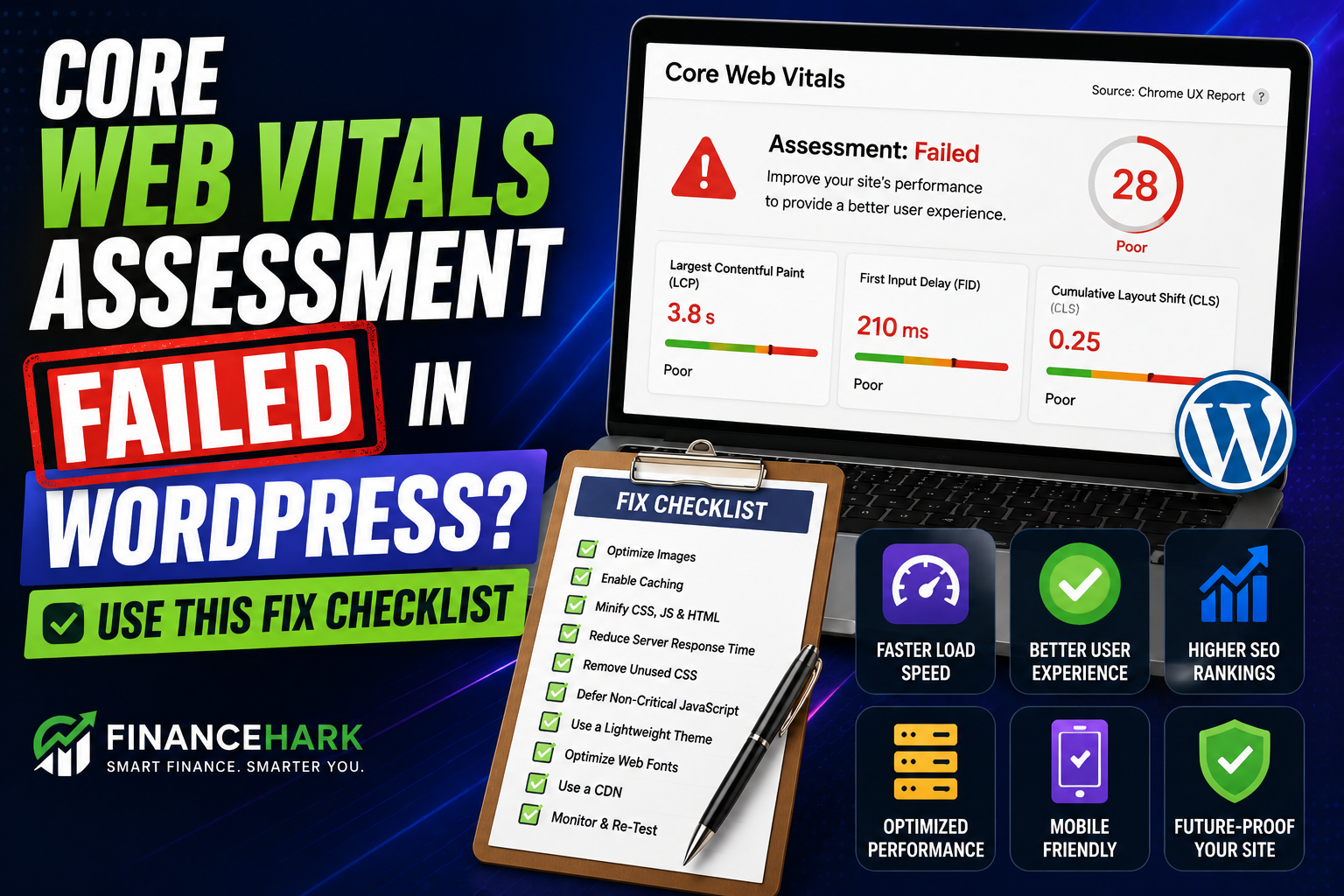
If your Core Web Vitals assessment failed in WordPress, the good news is this: it usually does not mean your whole site is broken.
It usually means a few specific things on your pages are making the experience feel slower, jumpier, or less responsive than Google wants to see.
And if you are a blogger or creator running WordPress, that is fixable.
I already covered practical ways to speed up a WordPress site, but this guide is more focused. It is for the moment when Search Console or PageSpeed Insights tells you a page failed and you need a clean action plan.
What Core Web Vitals actually measure
Right now, the main Core Web Vitals are:
- LCP for loading speed
- INP for interactivity
- CLS for layout stability
Google’s web.dev guidance says a good experience usually means:
- LCP at 2.5 seconds or less
- INP at 200 milliseconds or less
- CLS at 0.1 or less
You do not need to memorize the math. You just need to understand what kind of problem you are looking at.
Why WordPress sites often fail Core Web Vitals
In plain English, WordPress sites usually fail because of one or more of these:
- oversized images
- too many plugins
- heavy themes
- third-party scripts
- ads, popups, or chat widgets
- sliders and animated sections
- mobile bloat
The key is not to “optimize everything.”
The key is to find the biggest drag first.
The fastest way to diagnose the problem
Start with these tools:
- Search Console Core Web Vitals report
- PageSpeed Insights
- GTmetrix or similar visual waterfall tool
Search Console tells you which groups of pages are failing in real-world use.
PageSpeed Insights helps you inspect a specific page.
GTmetrix helps you see what is loading and in what order.
Use all three together. One tool alone rarely gives the full picture.
Your WordPress Core Web Vitals fix checklist
1. Fix the largest visible image first
If your hero image or featured image is huge, it can wreck LCP fast.
Check whether your above-the-fold image is:
- larger than needed
- not compressed
- still in an old format
What to do:
- resize it to realistic display dimensions
- compress it properly
- use WebP or AVIF when your stack supports it
- avoid loading a full-resolution image when mobile only needs a smaller version
This one fix alone can change the page feel more than people expect.
2. Remove or replace heavy homepage sections
A lot of WordPress sites look slow because the homepage is trying too hard.
Common offenders:
- sliders
- autoplay video headers
- animated counters
- overbuilt page builder sections
- giant testimonial carousels
Ask yourself:
Does this section help the visitor enough to justify the performance hit?
If not, simplify it.
3. Audit your plugins brutally
Not every plugin is bad. But every unnecessary plugin is another chance to slow your site down.
Look for plugins that:
- duplicate another tool
- load scripts on every page
- add popups or tracking
- create visual effects you do not actually need
If you are afraid to remove something, test one change at a time.
4. Delay or reduce third-party scripts
This is a huge one.
Your site may be fast enough on its own, but then you bolt on:
- analytics tools
- ad scripts
- chat widgets
- social embeds
- heatmaps
- tag managers
And now the page is doing too much.
If a page fails despite decent hosting and compression, third-party scripts are often part of the reason.
5. Watch for layout shift from ads, images, and fonts
CLS happens when elements jump around while the page loads.
Common causes:
- images without dimensions
- ads loading late
- popups pushing content down
- custom fonts swapping awkwardly
What helps:
- define image dimensions
- reserve space for embeds or ads
- avoid injecting UI at the top of the page after load
- keep font setups lean
If your layout feels like it “moves under the finger” on mobile, CLS is probably involved.
6. Treat mobile as the real battleground
A page can look okay on desktop and still fail badly on mobile.
That happens because mobile devices:
- have less power
- deal with slower networks more often
- expose bloated scripts faster
So if you only celebrate your desktop score, you may be missing the real problem.
Always test mobile separately.
7. Improve interactivity, not just load time
A page can appear loaded and still feel clunky when someone tries to use it.
That is where INP comes in.
Common causes of poor interactivity:
- too much JavaScript
- heavy builders
- bloated forms
- multiple scripts competing on load
If clicks feel delayed or the page takes too long to react, reduce what is running in the background.
8. Re-test after every meaningful change
Do not change ten things at once and hope it works.
Instead:
- make one or two focused fixes
- re-test the page
- document what changed
That makes it much easier to know what actually helped.
Why Search Console and PageSpeed Insights sometimes disagree
This confuses a lot of site owners.
PageSpeed Insights can show a decent lab result while Search Console still says the page group is failing.
Why?
Because Search Console reflects real user data over time, while PageSpeed Insights also includes lab testing on a single run.
So if Search Console still shows failed pages, it may take time for improvements to show up there even after you make fixes.
That does not mean the fixes did nothing.
A realistic priority order for small WordPress sites
If you want the shortest path to improvement, I would do this in order:
- Compress and resize your biggest above-the-fold image.
- Simplify heavy homepage or landing page sections.
- Audit plugins.
- Delay or remove third-party scripts where possible.
- Fix layout shift issues.
- Re-test mobile performance.
That order usually gets small sites further than chasing tiny technical wins too early.
What not to do
Do not obsess over a perfect 100 score
Your goal is a better real-world experience, not a screenshot for social media.
Do not install five optimization plugins at once
That often creates more confusion than speed.
Do not ignore site design tradeoffs
Sometimes the real fix is not another plugin. It is removing something flashy that is hurting performance.
Final thoughts
If your Core Web Vitals assessment failed in WordPress, take it as a prioritization signal, not a panic alert.
Most of the time, the page is telling you where friction lives:
- big images
- heavy scripts
- unstable layout
- too much going on above the fold
Clean those up first and you will usually improve both user experience and performance scores.
If you want a companion read after this, go through 3 Practical Ways to Speed Up a WordPress Site next.
FAQ
Why did my WordPress site fail Core Web Vitals?
Most WordPress sites fail because of oversized images, heavy plugins, third-party scripts, layout shift, or mobile performance issues.
What is the easiest Core Web Vitals fix in WordPress?
For many sites, the easiest win is optimizing the main above-the-fold image and simplifying heavy homepage sections.
How long does it take for Search Console to update Core Web Vitals fixes?
It can take time because Search Console uses real-world user data, not just a single instant test.
Should I care more about mobile or desktop Core Web Vitals?
For most sites, mobile matters more because that is where performance problems tend to show up faster.
FinanceHark Product
Get the full system behind clearer offers and stronger launches.
The FinanceHark Online Income System bundles the templates, scripts, prompts, and launch assets that make digital offers easier to build and sell.
- Templates, prompts, scripts, and workbook tools
- Instant access after successful payment
- Built for freelancers, creators, and digital sellers
Why this article is easier to trust
FinanceHark focuses on practical guides, transparent recommendations, and updates that make articles easier to use in the real world.
- Read how content is researched and updated in our Editorial Policy.
- See how affiliate relationships are disclosed on our Disclosure page.
- Use Start Here if you want a quicker route into the rest of the site.
Related reading